
License activation
Before you start#
- No reinstall required. You do not need a different build or a different image. The version you have activates with a key — though upgrading gets you the newest Pro and Enterprise features.
- Sign in with an administrator account.
- Have the key ready: it is in your purchase email, or in the Semaphore UI Portal.
Activate from the web UI#
Best for a single instance you administer by hand.
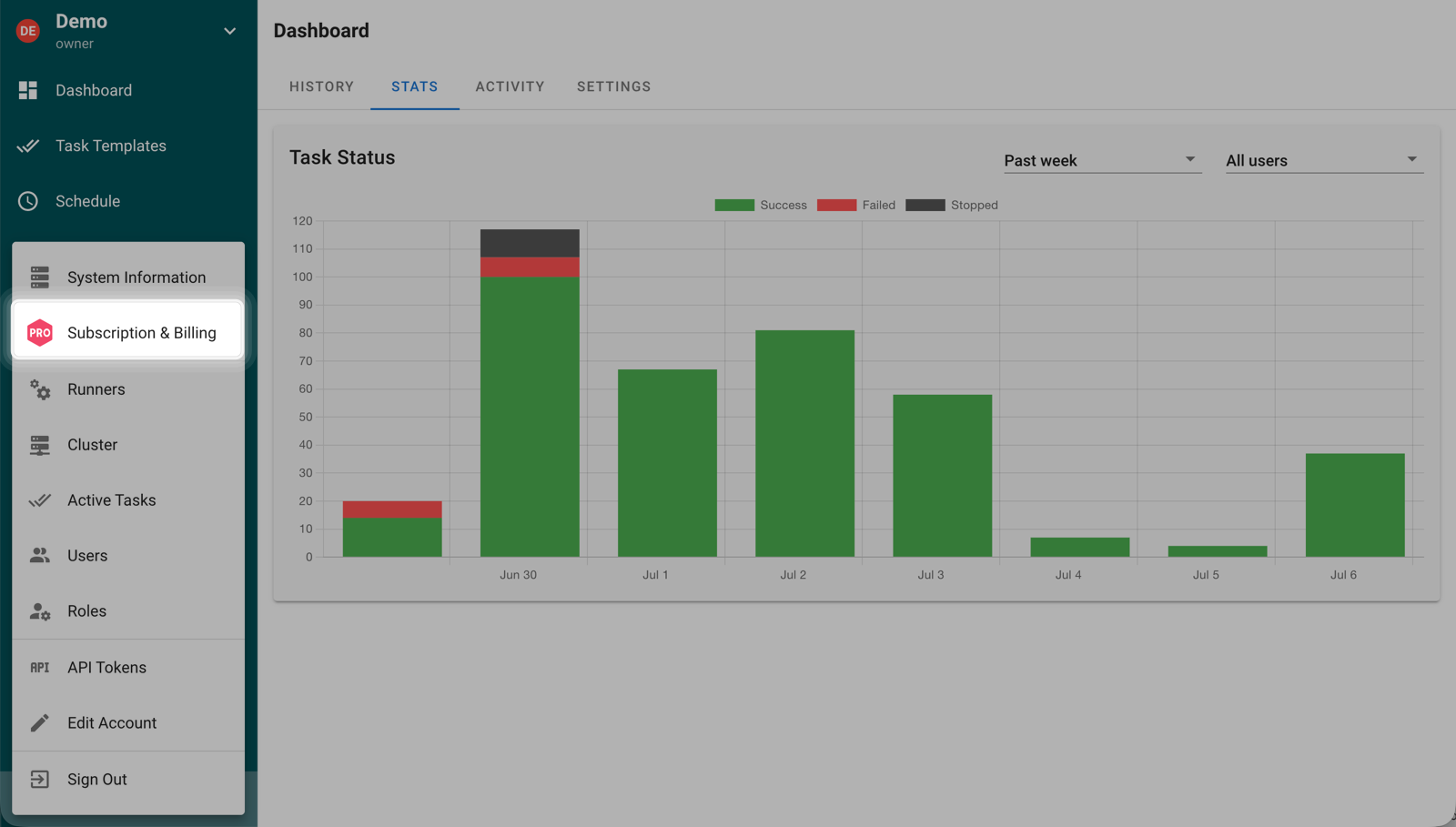
It is in the user area in the lower-left corner.
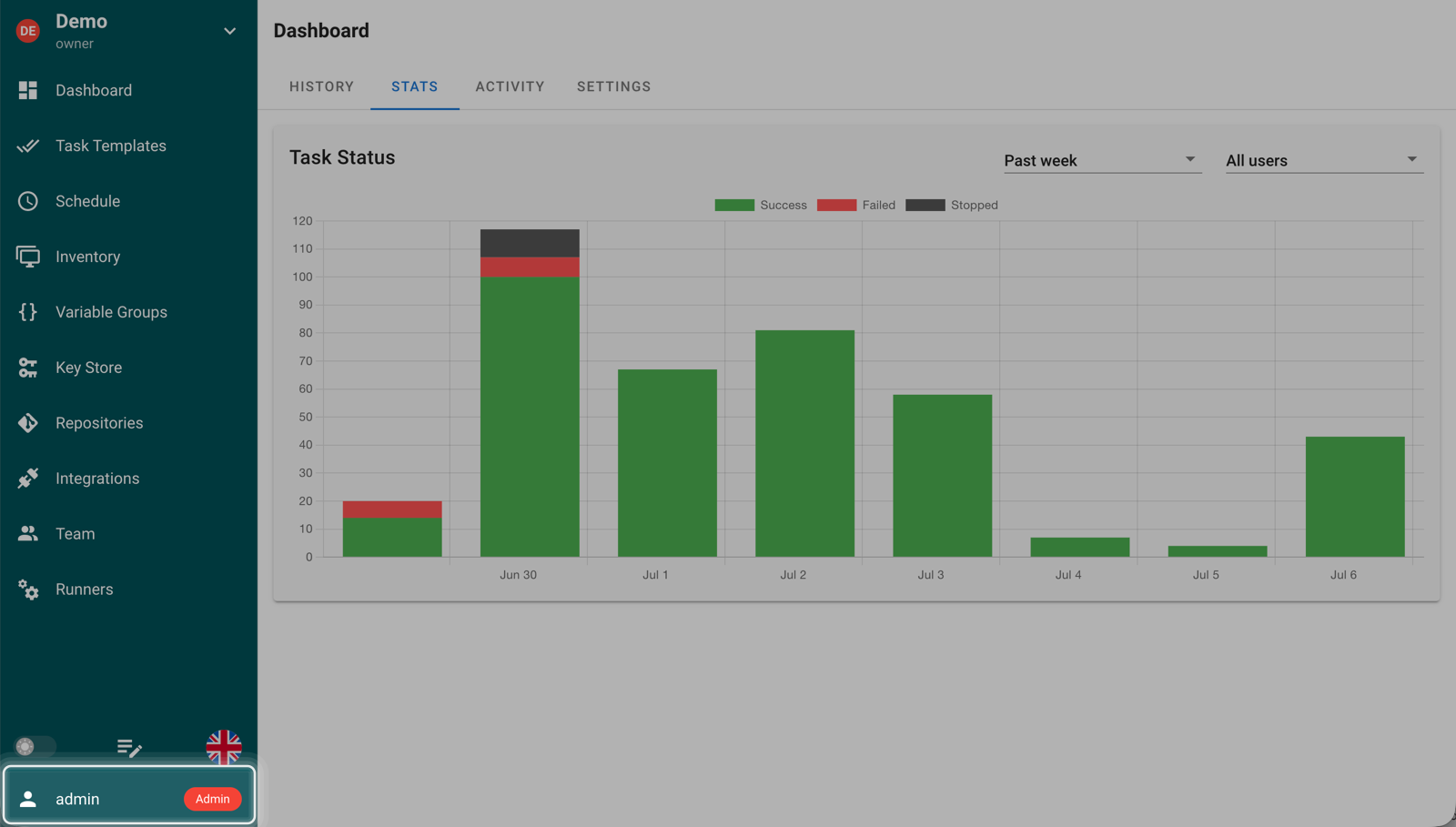
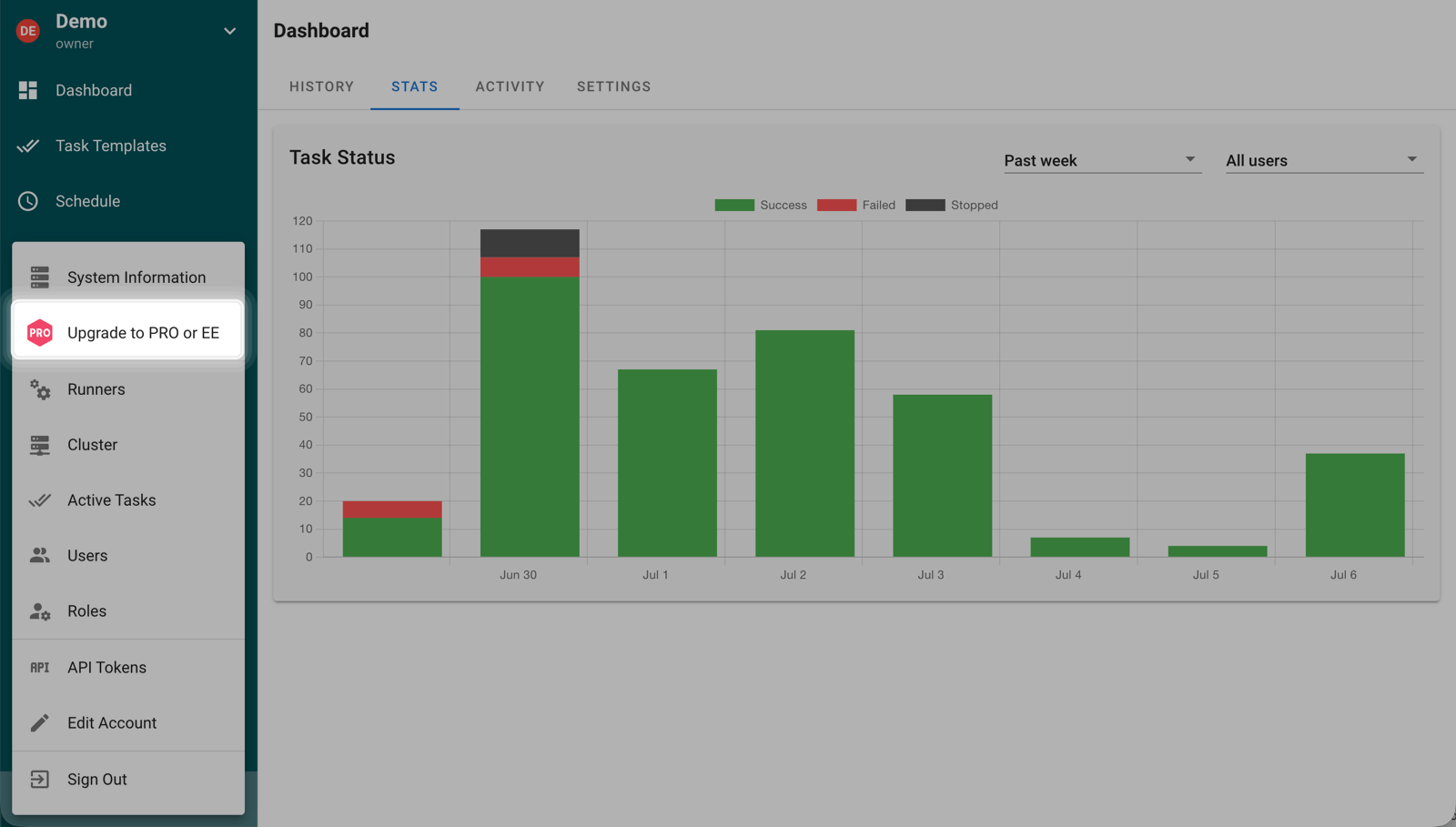
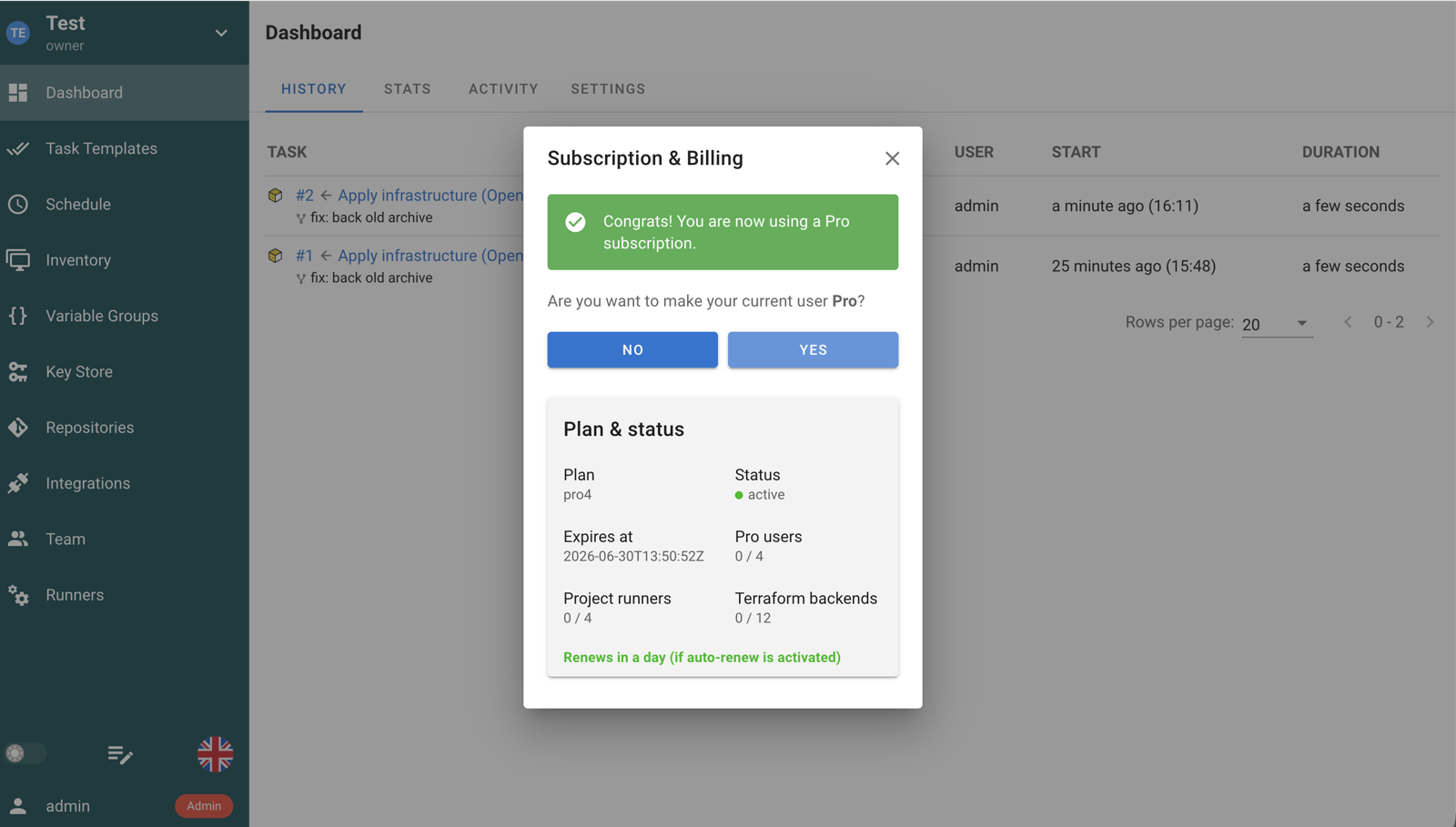
Paste your license key into the dialog and click ACTIVATE NEW KEY.
After activation, the Subscription & Billing dialog shows your current license details.
Activate from configuration#
For Docker, Kubernetes, systemd or anything else built from code, put the key in the server configuration instead. The options live under subscription.*.
{
  "subscription": {
    "key": "YOUR_LICENSE_KEY"
  }
}
Or as an environment variable:
export SEMAPHORE_SUBSCRIPTION_KEY=YOUR_LICENSE_KEYBetter still, keep it out of the environment entirely and read it from a file — which is what Docker secrets and Kubernetes secrets give you:
{
  "subscription": {
    "key_file": "/run/secrets/semaphore-license-key"
  }
}
export SEMAPHORE_SUBSCRIPTION_KEY_FILE=/run/secrets/semaphore-license-keyWhen the key comes from configuration, Semaphore disables the activation and editing controls in the Subscription & Billing dialog — for both
keyandkey_file, since the file is read into the runtime key at startup. This is deliberate: configuration is the source of truth, and nobody can drift from it through the UI.
Manage or replace a key#
Open the Admin menu and select Subscription & Billing.
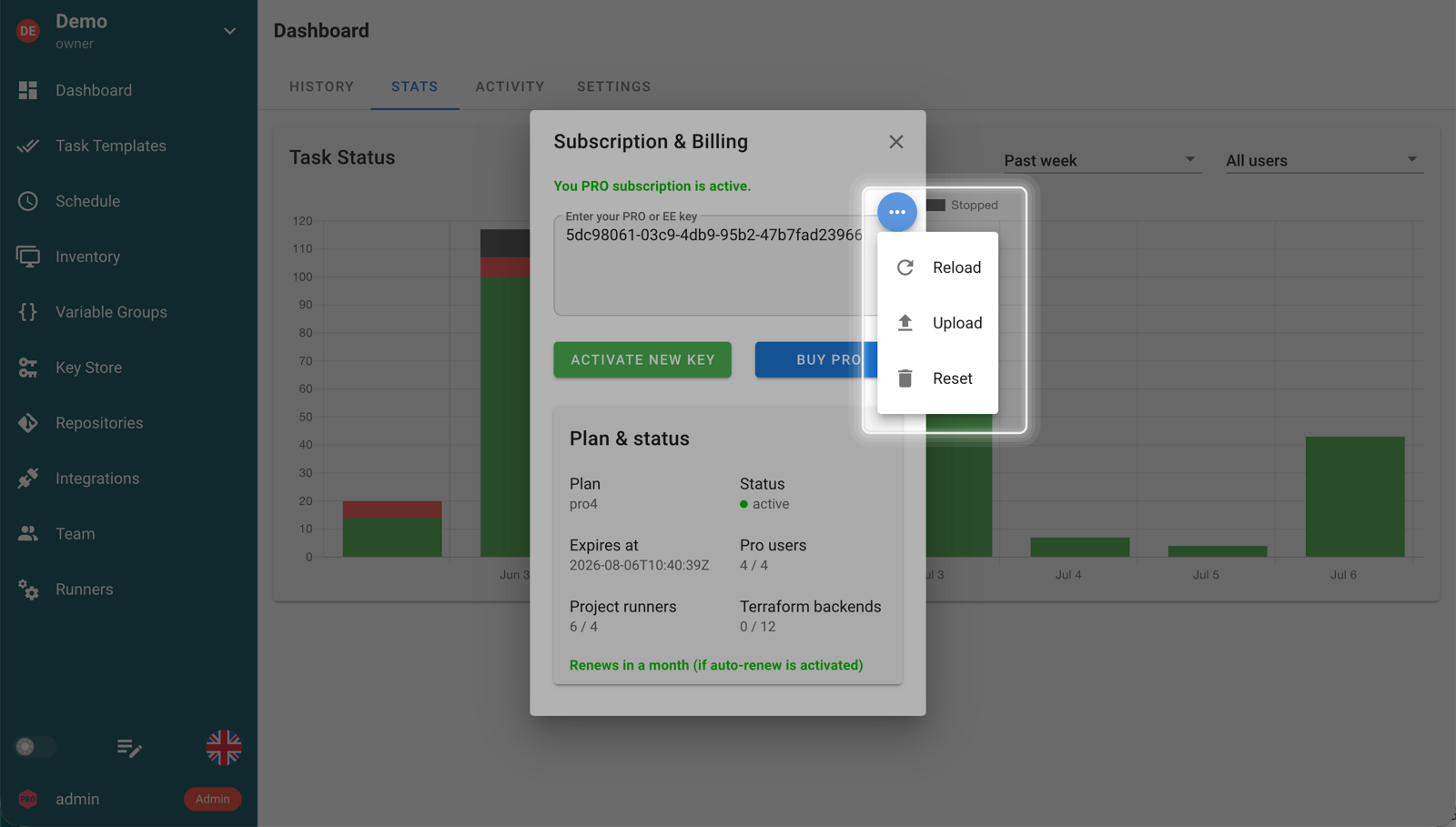
For a UI-managed key, the action menu inside the dialog lets you reload, upload or reset it.
For a configuration-managed key:
- Replace the value of
subscription.key, or the contents of the file referenced bysubscription.key_file. - Restart Semaphore so the server reloads it.
- Confirm the expected Pro or Enterprise options appear.
What each plan unlocks#
See Plans and pricing for the full comparison, or semaphoreui.com/pricing.
A 30-day Pro trial runs in your own self-hosted instance. No credit card.