
Triggers
How does a trigger work?#
A trigger is two things: when it wakes, and what it tells the Docsbook agent. It can wake on three kinds of occasion:
- Schedule — hourly, every day, weekdays, one day of the week, twice weekly or monthly. A new schedule starts at 9:00 your time.
- Docs event — something that happens in Docsbook: your docs change and finish re-indexing (every commit), a search finds nothing, the chat cannot answer, a reader rates a page, a translation falls behind, the project moves up a plan, the project is created. 16 project events and 37 reader events can be armed.
- App occasion — a change in a connected app: code lands on a branch, a release is published, a pull request merges, an issue gets a label, a spec file changes, a discussion opens, or a connected website changes or stops answering.
An event trigger fires at most once every 10 minutes, so a busy event buys a regular pass over what piled up, not one run per occurrence.
A card that wakes on every commit fires when the semantic index finishes a run that found changed pages, so it only fires with Enable semantic search on: Settings ▸ Agent, the Semantic Search card. That is 24 ready-made cards, all 15 translation cards among them. A change is picked up within minutes, whether it was made in Docsbook or pushed straight to GitHub. Semantic search is part of Pro, and on a trial it unlocks once a card is on file.
Every card's prompt has three parts — a goal, what to measure, and what a good result looks like — and never a list of steps. This is the prompt behind Fix what readers rated down:
Work the pages readers marked as unhelpful. A downvote says the page failed,
not how — so read the page as the reader who voted would have, with whatever
they were trying to do, and find the specific thing it does not say: the
missing step, the assumed knowledge, the answer that is technically present
and unfindable. Fix that, and leave the pages where you could not tell named
as such.

What to measure: which pages collect the most negative feedback, and whether
their rating recovers after the change.
What a good result looks like: the worst-rated pages answer what the reader
came for, and stop being the worst-rated.
The measure is what makes a run checkable: it names what the agent reads before the change and again after it.
What is on the Triggers screen?#
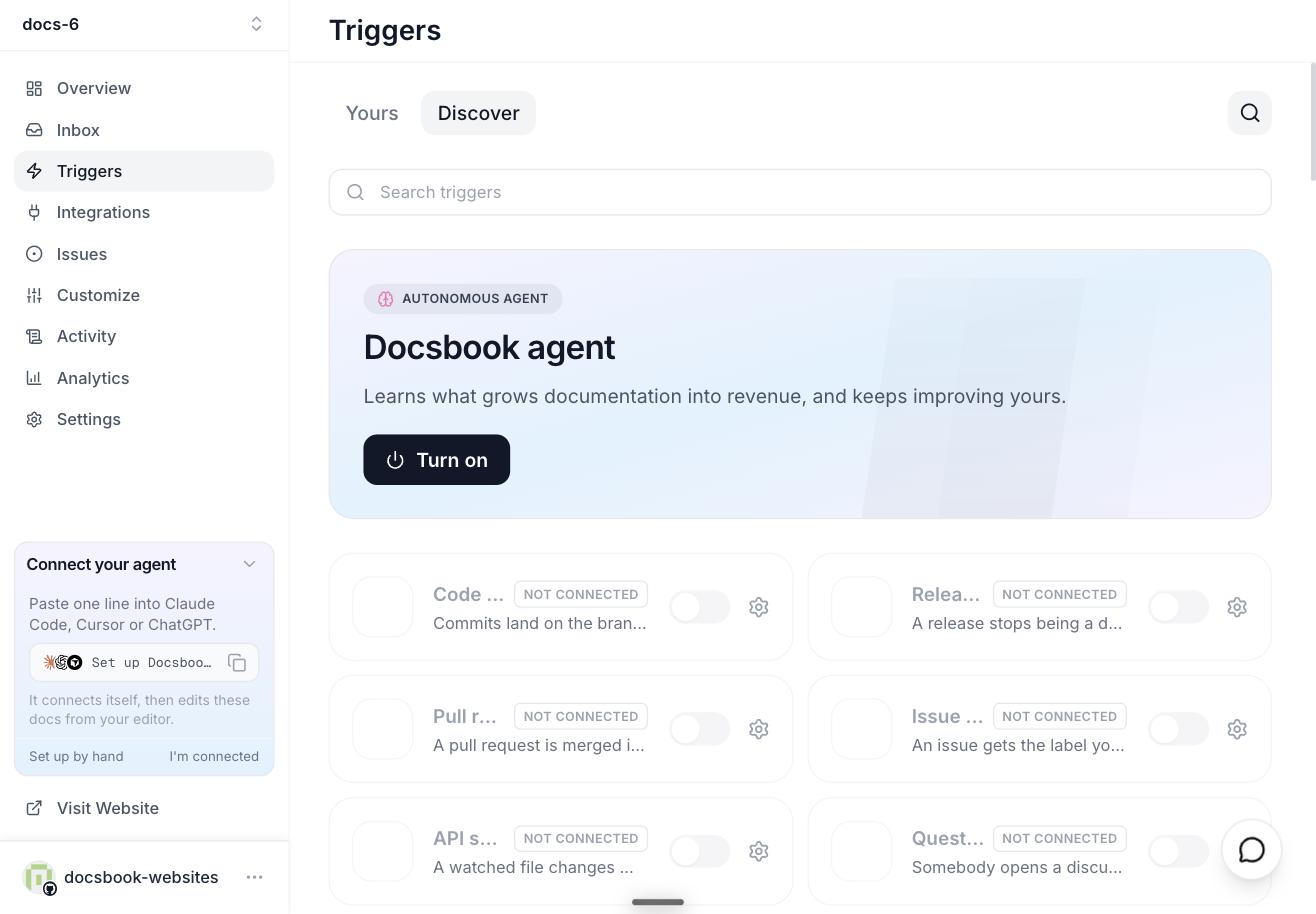
- Yours and Discover — Discover shows every card; Yours shows only the ones you switched on.
- The Docsbook agent — the card at the top. Press Turn on and it runs every hour, deciding for itself what your docs need most.
- Filters — Jobs, Dev, Analytics, SEO, GEO, Translate, Apps, Schedule and Events, each with a count. Sort by Recommended, Name or Recently run.
- The switch and the gear — the switch arms a card. The gear opens its settings: a name, one line about it, the schedule or event, and the Custom prompt, filled in on ready-made cards and fully editable.
- Running cards — a card whose run is going now turns the accent colour, shows a spinner and sorts first. Click it to open the run's live trace in Activity ▸ Agent runs; the Triggers row in the sidebar counts how many are running.
Can I write my own trigger?#
Yes. Press Add on the Triggers screen:
- Custom schedule — your own name, cadence and prompt.
- From your connected apps — any occasion a connected app can deliver that you have not armed yet.
- Connect an app — opens Integrations to connect one first.
Any event card works the same way: switch it on and write what the agent should do in its Custom prompt. Or tell the agent — "every Monday at 9, check the quickstart against the code and fix what drifted" — and it arms the trigger itself.
The catalog: 49 ready-made workflows#
Ready-made cards come in five groups, named after what a run ends in. Each line is the card's name, what it does, and when it wakes; "on every commit" cards need semantic search on.
16 cards. A run ends in a page.
- MCP sync — Keeps the docs in step with the tools your MCP server actually exposes today. · every day
- OpenAPI sync — Rebuilds the API reference from your spec; swap the demo link in the prompt for your own. · every day
- SDK sync — Keeps the reference in step with what your client SDK actually exports today. · every day
- Generate docs from your site — Turns the template into your docs from your site and your files. · once, when a project is created with a site
- Generate docs from your brief — Drafts your docs from your description, files and screenshots. · once, when a project is created without a site
- Generate a spec — Turns what actually shipped into a specification page that matches the code. · on every commit
- Write the user stories — Turns what shipped into stories in the user's words: who, what they want, why. · on every commit
- Generate a user flow — Writes the step-by-step path a real user takes, end to end, and finds where it breaks. · on every commit
- Refresh the quickstart — Keeps the first ten minutes working, on the one page every new reader starts on. · weekly
- Document the API surface — Finds the endpoints, options and errors that exist in code but nowhere in the docs. · on every commit
- Write the release notes — Turns the commits and merged work of a release into notes a user can act on. · on every commit
- FAQ from real questions — Builds the answers page out of what readers actually asked the chat. · weekly
- Troubleshooting from failures — Writes the page for what goes wrong, from the errors readers actually hit. · weekly
- Keep the glossary honest — One name per concept, defined once, used the same way on every page. · monthly
- Migration guide — Writes the upgrade path for a breaking change: what broke, what to change, in what order. · on every commit
- Add a working example — Finds the pages that explain without showing, and gives them code that actually runs. · weekly
10 cards. A run ends in a verdict and a fix.
- Sweep for broken links — Walks every link on the site and fixes the ones that lead nowhere. · on every commit
- Find pages the code outgrew — Catches documentation that stopped being true when the code moved under it. · on every commit
- Write the pages readers wanted — Reads the searches that returned nothing and writes what readers were looking for. · when a search finds nothing
- Organic search audit — Checks what keeps your documentation out of search results, and fixes what it can. · weekly
- Do AI engines cite you — Asks the answer engines about your product and fixes what makes them cite someone else. · weekly
- Catch translations falling behind — Finds translated pages whose source moved on without them. · when a translation falls behind
- Keep pages light — Finds the pages that ship far more than their own content, and trims them. · weekly
- Find pages that contradict — Catches two pages telling a reader two different things about the same thing. · weekly
- Fix the dead ends — Finds where readers stop: pages with nothing to click and nowhere to go next. · weekly
- Keep navigation truthful — Makes the sidebar match what exists, in the order a reader needs it. · on every commit
3 cards. A run ends in an answer a reader can find.
- Answer what the chat could not — Picks up the questions the AI failed to answer and writes what was missing. · when the chat cannot answer
- Fix what readers rated down — Takes every thumbs-down and works out what the page actually failed to say. · when a reader rates a page
- Turn support load into pages — Answers the same support question once, on the page, instead of every week. · every day
5 cards. A run ends in a finding you read.
- Weekly docs digest — Files one issue a week: what changed, what readers struggled with, what to do next. · weekly
- File the search gaps — Files what readers searched for and did not find, ranked, as an issue. · every day
- Docs a new customer needs first — Walks the docs as someone who just paid for your product: what they bought, what they try first, the limits they meet. · when this project moves up a Docsbook plan
- Where competitors get named — Finds the questions your product should own and someone else is answering. · weekly
- Explain a traffic drop — When readership falls, finds out which pages lost it and why. · weekly
15 cards, one per language. A run ends in a published translation.
Every card publishes and keeps its language's version of each page readers actually open, translating the prose and never the code. Each prompt also carries what goes wrong in that language:
- Translate into English — For docs written in another language: the version most readers and every answer engine meet first. · on every commit
- Translate into Spanish — Latin American Spanish unless the docs already address Spain, with one form of "you" throughout. · on every commit
- Translate into French — Vouvoiement throughout, and the English term kept where French technical writing keeps it. · on every commit
- Translate into German — Sie throughout, and a check on tight headings, buttons and table cells, since German runs about a fifth longer. · on every commit
- Translate into Portuguese — Brazilian Portuguese, with no European spelling mixed in. · on every commit
- Translate into Italian — The imperative for instructions, and the English term for anything a reader types or searches for. · on every commit
- Translate into Russian — The product name and Latin identifiers are never declined inside a sentence. · on every commit
- Translate into Chinese — Simplified Chinese with full-width punctuation, and Latin product names left as they are. · on every commit
- Translate into Japanese — Polite form throughout, and code samples never localised. · on every commit
- Translate into Korean — One register held across every page. · on every commit
- Translate into Arabic — Right-to-left prose, while commands, paths and code stay left-to-right and are never mirrored. · on every commit
- Translate into Hindi — Devanagari prose, and developer terms readers search for in English kept in English. · on every commit
- Translate into Turkish — The product name kept intact, with suffixes joined by an apostrophe. · on every commit
- Translate into Polish — The product name and Latin identifiers kept in the nominative, and the imperative for steps. · on every commit
- Translate into Dutch — The English term kept where Dutch developers use it, such as deployment and endpoint. · on every commit
A ready-made card is a starting point: the gear shows its full prompt, and you can rewrite it or move its cadence.
Which apps can wake the agent?#
Connected apps add their own occasions to the grid. These deliver today:
| App | Occasions | Checked |
|---|---|---|
| GitHub | Code landed, Pull request merged, Issue labelled, API spec changed | Every 15 minutes |
| GitHub | Release published, Question in Discussions | Every hour |
| Website | A source changed, A source went dark | Every 6 hours |
After you arm an app trigger, its first check only records where things stand. It starts waking the agent from the second check, so arming it never replays your whole history.
21 more occasions are designed for Slack, Telegram, Google Calendar, Google Workspace, Notion, Linear, Jira, Intercom, Zendesk, Sentry, GitLab, Figma and HubSpot. Their cards show on the grid with a Not delivering yet badge and cannot be switched on yet.
The agent cannot connect an app for you, because connecting needs your own browser session; it hands you the link instead. Everything the agent reads without being woken — websites, repositories, API specs, packages, other docs platforms — is a source.
Triggers make the agent work; they do not message people. For a Slack, Discord or email alert when something happens, use alerts and webhooks.
What does a trigger run cost?#
Every trigger run is an agent run, billed the same way: $0.10 plus three times the model tokens it burns, capped at $50 for one run, plus the Docsbook tools it calls. Agent runs are part of Pro — see Plans and pricing.
- Cadence is the lever — each ready-made card starts at the cadence its job is worth, and you can slow it down.
- Events are rate-limited — an event trigger fires at most once every 10 minutes.
- The Docsbook agent runs hourly — it is the card that can spend fastest.
FAQ#
Can I change a ready-made card's prompt or cadence?
Yes. The gear opens its settings with the prompt filled in and fully editable, and the cadence is a default, not a lock.
Why do translation cards run on commits, not on a schedule?
A translation falls behind for one reason: its source changed. Running on every commit brings the translated page back in line when the source moves, instead of up to a week later.
Can the agent set up triggers for me?
Yes. Say it in your own words — "check the docs every morning", "when the chat cannot answer, write what was missing" — and it arms the schedule or event itself, with the prompt written out in full. For an app that is not connected yet, it gives you the link to connect it.
Where do I see what a trigger did?
Every run appears in Activity ▸ Agent runs with its trace. The one-time creation cards report to your Inbox, and a run that fails lands there too.