
Review and publish the agent's work
How do the agent's changes land?#
Changes go to the repository your site is built from:
- The Docsbook-hosted repository — for a project Docsbook hosts. No GitHub account is needed.
- Your own GitHub repository — once the Docsbook GitHub App is installed on it with Contents: Read and write. Editing and GitHub sync covers the setup.
Each write is one atomic commit: pages written, moved and deleted together. When a page moves, its old address is recorded in .docsbook/redirects.json in the same commit, so links to it keep working.
A pull request is opened for every change, and the Auto-merge switch decides what happens next.
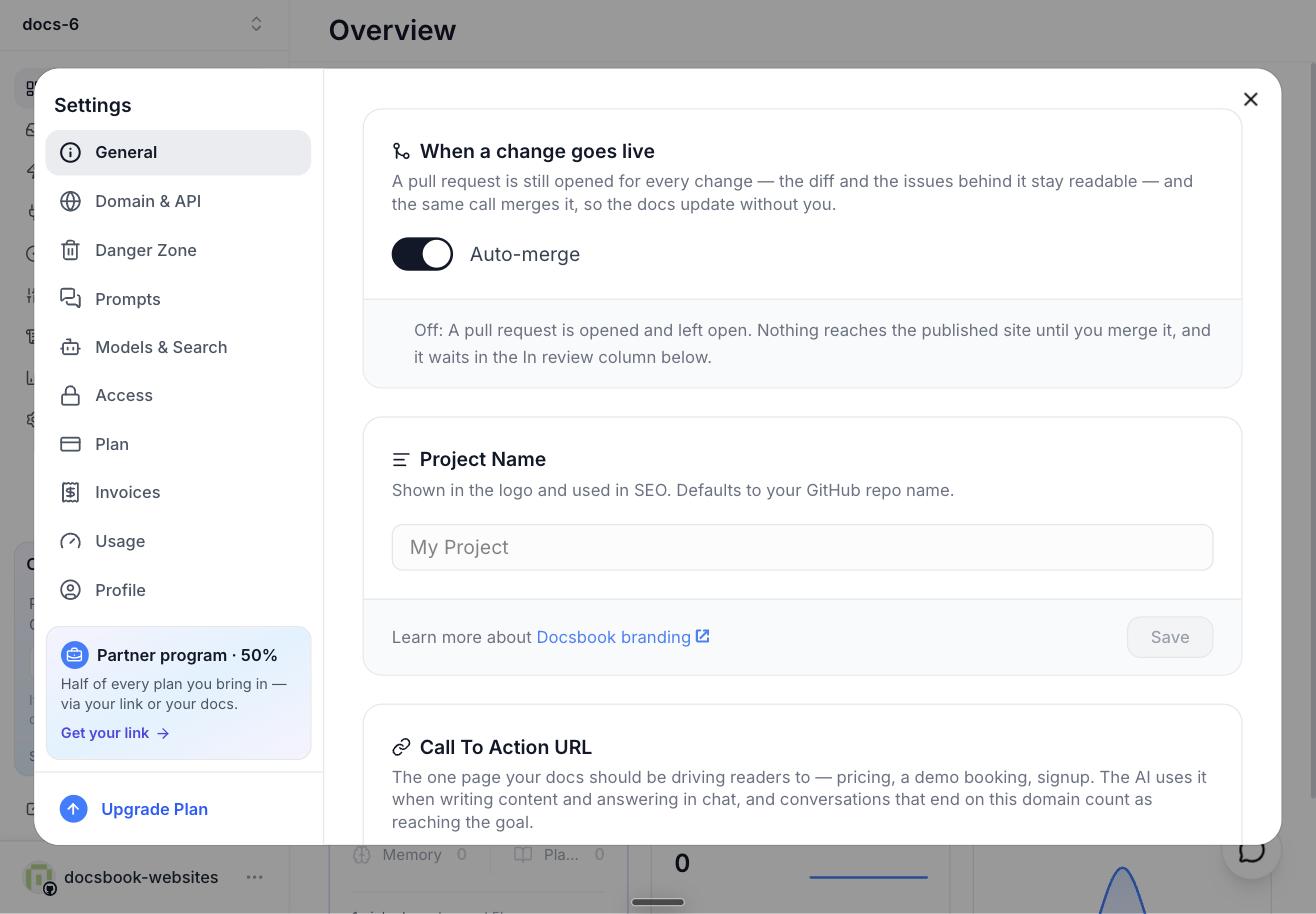
- Auto-merge on — the default. The same call merges the pull request as one squashed commit, so the docs update without you, and the diff and the issues behind it stay readable.
- Auto-merge off — the pull request stays open, and nothing reaches the published site until you merge it.
The switch is the When a change goes live card on Settings ▸ General.
How do I approve or reject a change?#
Open the pull request from Issues. It reads like GitHub — Conversation, Commits and Files changed — with the run that opened it and the issues behind it alongside, what the change expects to move, and two buttons:
- Approve and publish — merges the pull request and publishes the change.
- Reject — asks why. The reason is posted on the pull request, and the agent that opens the next one reads it.
A comment you leave there is posted to GitHub and handed to the assistant, which answers or acts on it. If GitHub reports a conflict with the live docs, approving fails until the conflict is resolved on GitHub.
What do page statuses mean?#
Every page carries a status and a version in its own frontmatter, so its lifecycle travels with your repository.
status |
Shown as | Meaning | The agent may build on it | Writes |
|---|---|---|---|---|
generated |
Generated | A machine wrote it and no human has read it yet | No | Allowed |
draft |
Draft | Someone is still writing it | No | Allowed |
review |
In review | Waiting for a human to read it and decide | No | Allowed |
approved |
Approved | A human signed off this version | Yes | Allowed, and the page goes back to review |
locked |
Locked | Frozen on purpose, such as an API promise | Yes | Refused |
deprecated |
Deprecated | Superseded, kept so its links keep working | No | Allowed |
archived |
Archived | History, neither built on nor edited | No | Refused |
A new page opens at generated, version 0.1, and every edit bumps the version. Editing an approved page sends it back to review, because the sign-off was of the text that just changed.
Writing can never approve a page: a write never sets approved or locked, whatever the frontmatter says. Approval is its own step, set_doc_status, which needs a read-write MCP token — and it is also how a locked or archived page is thawed before anyone can edit it.
To see every page waiting on you, ask your MCP client for get_project_doc_outline filtered to status: review.
What arrives in the Inbox?#
Inbox holds what the agent asked you and what it reported:
- Reports — what the agent decided was worth your time.
- Questions — decisions only you can make.
- The creation report — what Generate docs from your site or Generate docs from your brief did, and what it needs you to confirm.
- Failures — a trigger run that failed arrives as "… failed", with the reason it gave.
A trigger run that succeeds writes you a letter only when the agent has something to say.
Reply opens the chat in your panel with the letter quoted and your cursor ready. Add your words and send, and the agent answers — or does the work you asked for.
How do I watch a run?#
Activity ▸ Agent runs lists every run on the project: what was asked, where it came from, its status, when it started, how long it took, the tool calls and model turns it made, its tokens and its cost.
| Status | What it means |
|---|---|
| Queued | Accepted, waiting for the agent to pick it up |
| Running | The agent is working on it now |
| Completed | The agent decided the job was done and reported |
| Failed | The run broke or reported a failure |
| Stopped | Stopped by the owner before it finished |
| Cut short | Ran out of steps or time for one pass; send the request again to continue |
Open a row for its trace: the run, each attempt and step, and the model call and tool calls inside each step, laid out on one time axis. While the run is open the trace refreshes every two seconds, so you watch it think instead of reading a snapshot.
Where do I follow the prediction?#
Issues is one list of every issue and pull request on your repository, with the reason, the prediction and the date to check it.
- Filter — with GitHub's own syntax, such as
is:pr,state:openorlabel:docs, plusis:duefor records past their check date with no reading yet. Sort by Impact at risk to see those first. - How far it got — each pull request shows Opened, Reviewed, Merged and Measured, and once measured, the share of the predicted move that happened.
- What it expected — the detail lists each expectation: the page, the rule, the instrument, the readings before and after, and the verdict — As predicted, No effect, Went backwards or Cannot tell.
Find wins fast explains how the prediction is written and judged.
How do I stop a run?#
- A job you started — call
docsbook_agent_stopfrom your MCP client with its task id;docsbook_agent_taskslists them. - A trigger — switch its card off on Triggers, and its next run does not start.
- An empty balance — a run is told to wind up when the money behind it runs out.
What a stopped run already committed stays an ordinary commit, reviewable and revertible like any other.
What did it cost?#
Each run's tokens and cost are in the Cost column of Activity ▸ Agent runs. Settings ▸ Usage shows your balance and where it went over the last 24 hours, 7 days or 30 days. The price of a run is on How the agent works.