
Edit and publish your docs
Four ways to change a page#
| Where | How |
|---|---|
| On the page | Turn on interactive mode, click a block, pick what to do with it |
| Panel chat | Say what to change: "Add a troubleshooting section to the Webhooks page" |
| Your agent | Claude Code, Cursor or Codex, through write_docs or the Docsbook agent (docsbook_agent) — see Connect your agent |
| GitHub | Edit or push the Markdown yourself |
The first three go through Docsbook, so the site refreshes the moment the change lands. A commit you push to GitHub yourself doesn't trigger that refresh: readers get it when their cached copy of the page expires, at most a day later.
Edit on the page#
Interactive mode makes every block of your live site clickable.
In Overview ▸ Your documentation website, press the pencil (Open the documentation in edit mode). On your live site, the same switch is Interactive mode, the cursor icon in the panel chat.
A toolbar opens above it: Edit text, Rewrite with AI, Make concise, Expand, Turn into a widget, Change its shape, Delete block and more.
Your pick lands in the panel chat's input, naming the exact block. Add what only you know and send it: the agent edits the Markdown and commits.
The sidebar, header and footer are clickable too: a sidebar entry offers Rename, Icon, Move and Hide from the sidebar. Drag a block by its handle to move it, press + between two blocks to insert one, or use Add a page at the bottom of the sidebar.
The editor and the panel chat run the Docsbook agent, so they draw on your balance (Plans and pricing). Editing a file on GitHub costs nothing.
Publish from your GitHub repository#
Docsbook publishes your repository's default branch. Every .md and .mdx file is a page, except those under .github/, node_modules/ and .docsbook/.
- Unattended writes — scheduled runs and MCP clients commit through the Docsbook GitHub App (Contents: Read and write). If Docsbook can only publish while you're signed in, Overview ▸ Your documentation website says so and links to the fix.
- Reader fixes — turn on Edit on GitHub in Customize ▸ Right sidebar, and every page links to its source file.
No GitHub? Docsbook hosts the repository#
A project created without a repository keeps its Markdown in a repository of Docsbook's own on GitHub. You edit it through the page, the panel chat or your agent, with nothing to install. It starts public for a public site, and making the site private closes it too.
To own the source, move it to your GitHub:
- In Overview ▸ Your documentation website, press the GitHub button next to Hosted by Docsbook.
- Connect GitHub if asked, then choose the Owner (your account or an organization) and the New repository name.
- If the panel asks, install the Docsbook GitHub App on that owner and press Check again. Then press Move to my GitHub.
What happens next depends on the owner you picked:
- Organization — the App creates the repository and copies every file in one commit.
- Personal account — GitHub transfers the repository with its history. Accept the transfer from GitHub's email; until then, the site keeps publishing from Docsbook hosting.
Moving needs full access to the project, and it can change your site's docsbook.io address — the panel shows the new one before you confirm. A custom domain keeps working.
Review changes before they go live#
Settings ▸ General ▸ When a change goes live decides what happens to each change made through Docsbook.
- Auto-merge on (default) — a pull request is still opened for every change, so the diff stays readable, and merged in the same step.
- Auto-merge off — the pull request stays open. Open it in Issues and press Approve and publish to put it live.
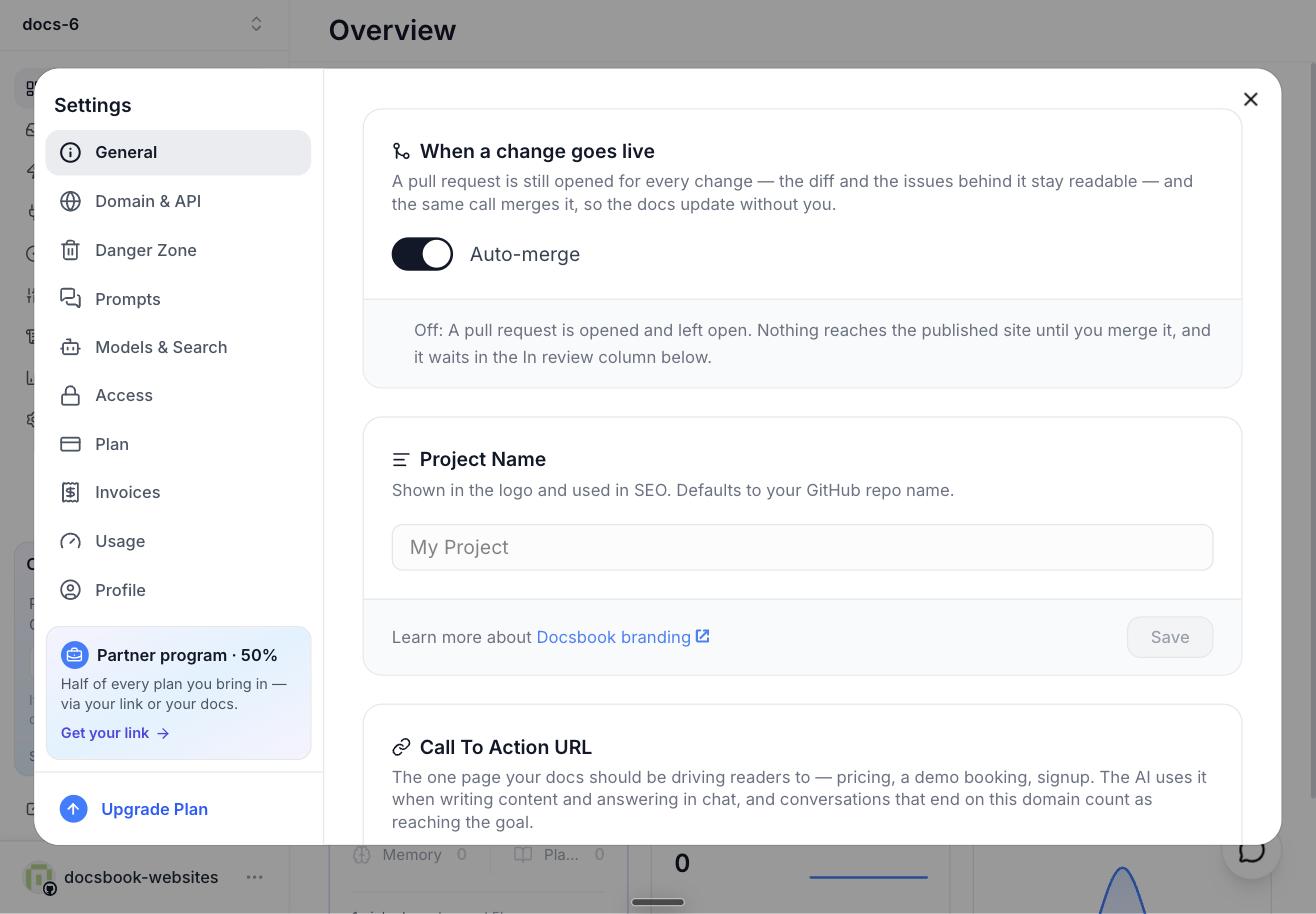
The editor, the panel chat and write_docs from your own agent all follow this switch; commits you push yourself don't. A pull request merged on GitHub instead waits for the page cache, like any push. More in Review changes.
Move or rename a page without breaking links#
When Docsbook moves or renames a page, it writes the old address into .docsbook/redirects.json in the same commit. The old URL then answers with a permanent redirect (308).
Renamed a file on GitHub yourself? Add the entry by hand:
{
  "version": 1,
  "redirects": [
    { "from": "guides/setup", "to": "guides/installation" }
  ]
}
Paths are page addresses without .md. A redirect applies only where no page exists any more, and a chain of moves sends readers straight to the last address.
How the sidebar is ordered#
The sidebar mirrors your folders. In each folder, pages come before sub-folders, and names are ranked:
- First —
README,index,introduction,intro,overview,getting-started,get-started,quickstart,quick-start,installation,install,setup - Last —
reference,api,api-reference,changelog,faq,faqs,troubleshooting,glossary,migration - Everything else — alphabetical, so a number prefix such as
01-sets the order (it's ignored when matching the names above)
Labels come from file names: getting-started.md shows as Getting Started, README.md as Introduction. To relabel an entry or give it an icon without renaming the file, click it in interactive mode (Rename, Icon); icons are also in Customize ▸ Left sidebar ▸ Sidebar Icons. Top-level folders become tabs under the header in Customize ▸ Header ▸ Subheader Folders.
A top-level page named chat or api-reference won't open: those addresses belong to the site's AI chat and API reference. On a custom domain or a site at its own <name>.docsbook.io address, the same goes for pages in a top-level api/ folder named after a Docsbook route, such as api/webhooks or api/search.
Frontmatter the site reads#
| Key | What it does |
|---|---|
title |
The browser-tab and search-result title; wins over the page's # heading |
description |
The description search results and link previews show |
tldr |
The summary under the page title; without it, the first paragraph is used |
author, authorUrl |
The author in the page's structured data; without it, the last commit's author |
noindex: true |
Keeps the page out of search engines |
status, version |
The page's review stage, kept by Docsbook; change it with set_doc_status |
Tell your agent#
- "Rename
setup.mdtoinstallation.mdand keep the old link working." - "Show Get started instead of Quickstart in the sidebar, without changing the URL."
- "Mark the v1 migration guide as deprecated."
Send them from the panel chat or from your own agent.